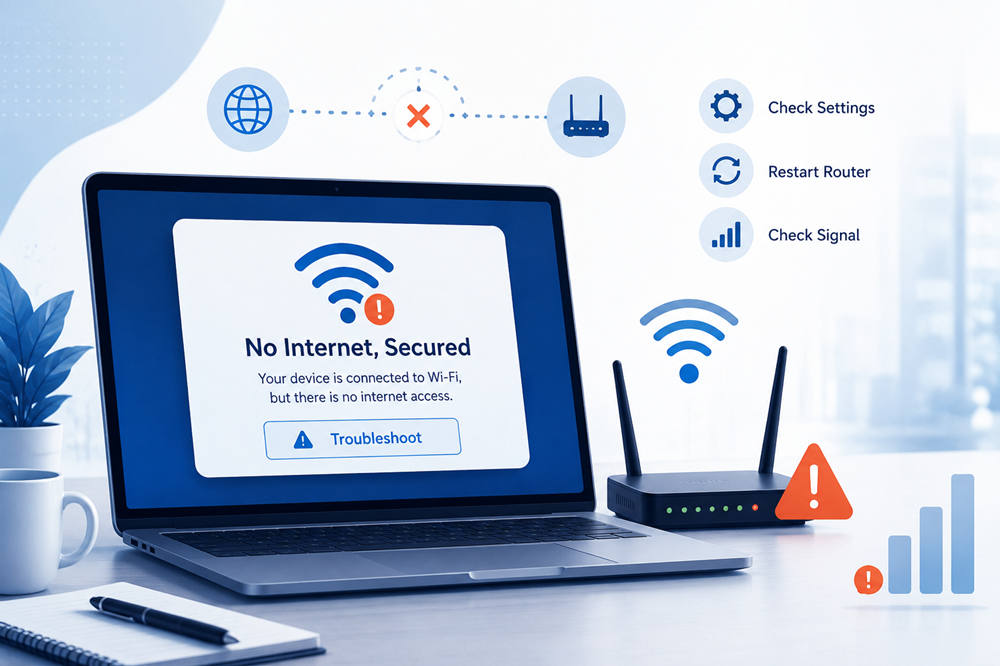
Seeing “No Internet, Secured” on your Windows laptop can be confusing. Your Wi-Fi looks connected, but websites will not load, apps stay offline, and your browser may say there is no connection.
This usually means your computer is connected to the router, but the internet is not reaching your device properly. In most cases, you can fix it with a few simple checks before touching anything advanced.
What Does “No Internet, Secured” Mean?
“No Internet, Secured” means your device is connected to a protected Wi-Fi network, but Windows cannot access the internet through it.
“Secured” means the Wi-Fi network uses a password or encryption. “No internet” means the connection between your device and the wider internet is not working.
So, your laptop may be connected to the router, but something is blocking or breaking internet access.
Why Does Windows Say “No Internet, Secured”?
This message can appear when there is a problem with your laptop, router, modem, Wi-Fi signal, DNS settings, IP address, driver, VPN, firewall, or internet provider.
If every device in your home has no internet, the issue is probably your router, modem, or service provider. If only one Windows device shows the message, the problem is more likely inside that device’s network settings.
Quick Checks Before Changing Settings
Start with the simple stuff first. Restart your computer, turn Wi-Fi off and back on, and move closer to the router.
Then check another phone, tablet, or laptop on the same Wi-Fi network. If those devices work, focus on fixing your Windows device. If they do not work either, restart your router and check with your internet provider.
You can also connect your laptop to a mobile hotspot. If it works there, your home network is probably the issue.
Fix 1: Run the Windows Network Troubleshooter
Windows has a built-in troubleshooter that can detect common network problems. It is not perfect, but it is a useful first step because it can reset simple settings automatically.
On Windows 11, open Settings, go to Network & Internet, then choose Advanced network settings. Look for Network troubleshooter or Internet Connections and run it.
On Windows 10, open Settings, go to Network & Internet, then select Status. Choose Network troubleshooter and follow the prompts.
You can also use Microsoft’s guide to fix Wi-Fi connection issues in Windows if you want the official Windows troubleshooting path.
If Windows suggests a fix, apply it. After that, reconnect to Wi-Fi and test your browser.
Fix 2: Restart Your Router and Modem Properly
A router or modem can freeze even when the Wi-Fi name still appears. Restarting it properly can clear temporary connection problems.
Unplug your modem and router from power. If you use a modem-router combo, unplug that single device.
Wait 30 to 60 seconds. Plug the modem back in first and let the lights become stable. Then plug the router back in and wait for Wi-Fi to return.
Reconnect your Windows device and try opening a website.
If the message disappears, the issue was likely a temporary network glitch. If it keeps coming back, your router may need a firmware update, better placement, or replacement.
Fix 3: Forget and Reconnect to the Wi-Fi Network
Windows saves Wi-Fi profiles so it can reconnect automatically. Sometimes a saved profile becomes outdated or corrupted, especially after a router update, password change, or Windows update.
To refresh it, open Settings and go to Network & Internet. Select Wi-Fi, then choose Manage known networks.
Find your Wi-Fi network and click Forget.
After that, reconnect to the same network and enter the Wi-Fi password again. This gives Windows a fresh connection profile and may clear the “No Internet, Secured” message.
Fix 4: Change DNS Settings
DNS helps your computer find websites. When DNS is slow, broken, or misconfigured, your Wi-Fi may connect but websites may not load.
Changing DNS can help if your connection appears active but browsers keep failing. You can read Google’s official Public DNS setup guide if you want more detail before changing anything.
Two common options are:
Google DNS
8.8.8.8
8.8.4.4
Cloudflare DNS
1.1.1.1
1.0.0.1
Cloudflare also explains its 1.1.1.1 public DNS resolver if you want to understand what that service does.
To change DNS, open Settings, then go to Network & Internet. Select your Wi-Fi connection and look for DNS settings.
Change DNS assignment from automatic to manual, then enter your preferred DNS addresses. Save the change, reconnect to Wi-Fi, and test your connection.
Fix 5: Reset IP Configuration With Command Prompt
Your laptop needs a valid IP address to communicate with your router. If that address is stuck or incorrect, Windows may connect to Wi-Fi without getting internet access.
You can refresh the connection through Command Prompt.
Search for Command Prompt in the Start menu. Right-click it and choose Run as administrator.
Enter these commands one at a time:
ipconfig /release
ipconfig /flushdns
ipconfig /renew
netsh winsock reset
netsh int ip reset
Press Enter after each command.
When you are done, restart your computer. Then reconnect to Wi-Fi and check whether the internet works.
Fix 6: Update or Reinstall the Wi-Fi Driver
Your Wi-Fi driver helps Windows communicate with the wireless adapter inside your laptop. If the driver is old, damaged, or incompatible, your connection may drop or show the wrong status.
Right-click the Start button and choose Device Manager.
Expand Network adapters. Look for your wireless adapter. It may include names like Intel, Realtek, Qualcomm, Broadcom, MediaTek, Wi-Fi, or Wireless.
Right-click the adapter and choose Update driver. Select the option to search automatically.
If Windows finds a newer driver, install it and restart your computer.
If that does not help, return to Device Manager, right-click the Wi-Fi adapter, and choose Uninstall device. Restart the computer, and Windows should reinstall the adapter automatically.
If the problem started after a driver update, open the adapter properties and check whether Roll Back Driver is available.
Fix 7: Turn Off VPN, Proxy, or Security Tools Temporarily
VPNs, proxy settings, firewalls, and security programs can sometimes block internet access. This is more likely if the problem started after installing a VPN, changing antivirus settings, or using a work network profile.
Turn off your VPN and reconnect to Wi-Fi. Then try opening a website.
Next, check proxy settings. Open Settings, go to Network & Internet, and choose Proxy. Unless you know you need a proxy, keep manual proxy settings turned off.
If you use a third-party firewall or antivirus tool, briefly disable its web protection or firewall feature for testing. Turn it back on afterward.
If your internet works only when one of these tools is off, update that app, reset its settings, or remove it if it keeps causing problems.
Fix 8: Check Power Management Settings
Some laptops turn off the Wi-Fi adapter to save battery. That can cause connection problems, especially after sleep mode or when the laptop runs on battery power.
Open Device Manager and expand Network adapters.
Right-click your Wi-Fi adapter and choose Properties. Open the Power Management tab if it appears.
Uncheck Allow the computer to turn off this device to save power.
Click OK, restart your laptop, and reconnect to Wi-Fi.
This setting does not appear on every device, so do not worry if you do not see it.
Fix 9: Reset Network Settings
If nothing else works, a full network reset can clear stubborn Windows networking problems. It removes and reinstalls network adapters, resets network components, and deletes saved Wi-Fi profiles.
Make sure you know your Wi-Fi password before doing this.
On Windows 11, open Settings, go to Network & Internet, then choose Advanced network settings. Select Network reset.
On Windows 10, open Settings, go to Network & Internet, then choose Status. Look for Network reset near the bottom.
Microsoft explains that a network reset removes installed network adapters and their settings, then reinstalls adapters after the computer restarts.
Click Reset now and confirm.
Your computer may restart. After it comes back on, reconnect to Wi-Fi and enter your password again.
Fix 10: Check for Router or Internet Provider Problems
If all devices in your home show connection problems, your Windows laptop is probably not the cause.
Check your modem and router lights. A red, orange, blinking, or missing internet light may point to a service problem.
Try connecting with an Ethernet cable if you can. If Ethernet works but Wi-Fi does not, your router’s wireless settings may need attention. If Ethernet also fails, the issue may be the modem, router, or internet service.
You can also check your provider’s app or support page for outages.
Older routers can also cause repeated connection problems. If your router overheats, drops Wi-Fi often, or needs frequent restarts, it may be time to update its firmware or replace it.
When You May Need More Help
Most “No Internet, Secured” errors can be fixed with the steps above. Still, some cases need extra support.
Contact your internet provider if no device in your home can get online. The issue may be an outage, modem problem, account issue, or damaged line.
Get help with the computer itself if the Wi-Fi adapter keeps disappearing, the problem returns every few minutes, or the device never connects to any network.
If the issue started right after a Windows update, you may need to roll back a driver, uninstall a recent update, or install the correct driver from your laptop manufacturer.
For harder Wi-Fi problems, Windows can also create a wireless network report, which may help you or a technician see connection errors more clearly.
Conclusion
The “No Internet, Secured” message usually means your Windows computer is connected to Wi-Fi, but internet access is not getting through.
Start with the easiest fixes: restart your computer, restart your router, forget and reconnect to the network, and run the Windows troubleshooter. If the problem continues, try DNS changes, IP reset commands, driver updates, and a full network reset.
When only one device has the issue, look at Windows settings first. When every device is offline, check your router, modem, or internet provider.